.svg)
HYAS Protect supports multiple download and installation methods for macOS, giving you the flexibility to choose the approach that best fits your environment. Whether you're deploying to a single device or managing installation at scale, we’ve made it easy to get started.
Installation via the EnforceDNS Portal
Step 1: Download the Agent
1.1 Log into the EnforceDNS Portal.
1.2 Navigate to the Settings icon 
1.3 Select Organization Settings
1.4 Choose EnforceDNS Agent from the menu on the left side.
1.5 From the Agent dashboard, select the Install tab.
1.6 Click the macOS download button to begin the download.
Use the following command if you wish to download the Agent via terminal:
curl https://protect-updates.hyas.com/macos/pkg/HYAS-Protect-latest.pkg -o $HOME/Downloads/HYAS-Protect-latest.pkg
Step 2: Install the Agent - Interactive
Now that you’ve downloaded the Agent, its time to install it. This walks you through how to complete an interactive install.
2.1 Navigate to your Downloads folder and double click the HYAS-Protect-latest.pkg file.
2.2 When the Setup Wizard opens, click Allow.
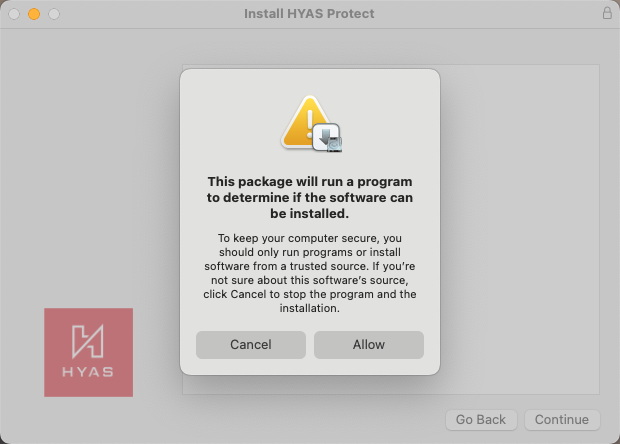
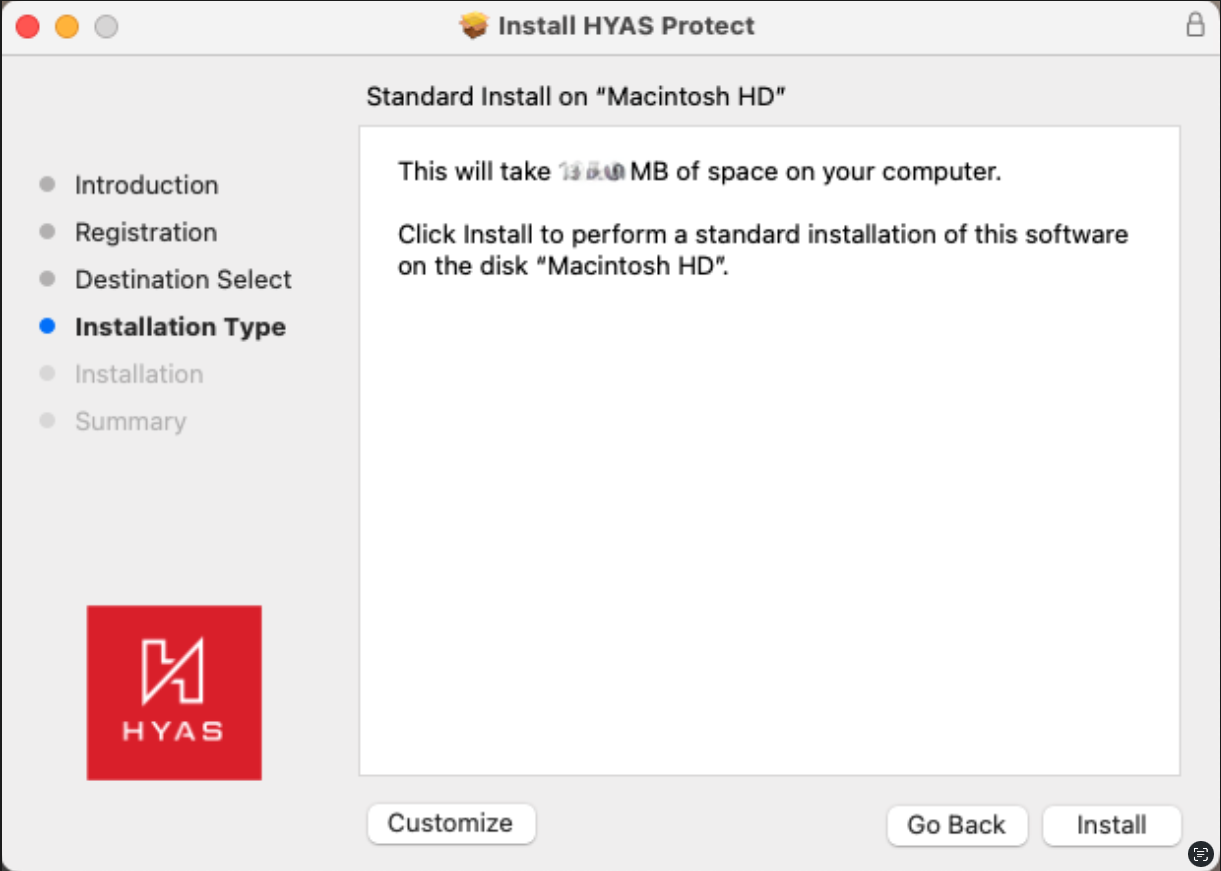
2.4 Click Continue.
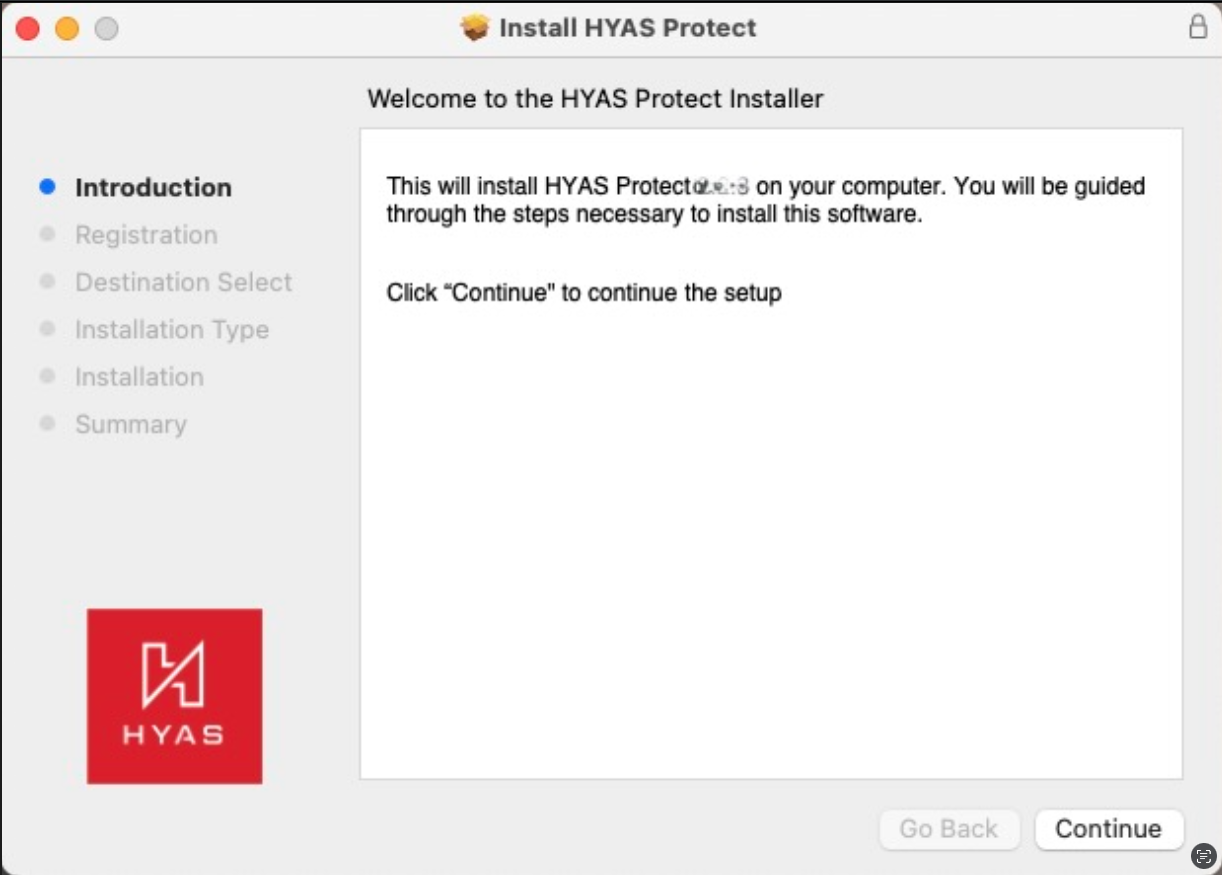
2.5 Paste your Install Key into the Registration and click Continue.
2.5.1 To obtain your Install Key, go to the EnforceDNS Portal> Settings> Organization Settings> EnforceDNS Agent> Install. Copy the Install Key, paste it into the Registration, then click Continue.
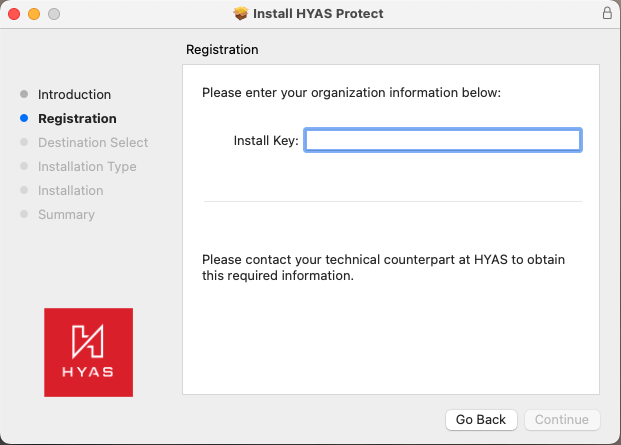
2.6 Select Install
If you’re not currently logged in as an Administrator, you will need Administrator credentials to allow the installation.
2.7 Once the Agent has been installed, click Close.
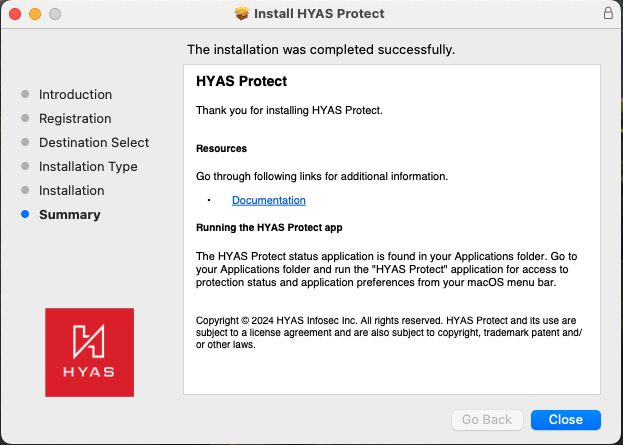
By default, the Agent UI will not launch. However, the service will still be running and actively protecting your machine whether the UI is running or not.
Step 3: Silent Install (Alternative to Step 2)
A silent installation means that the application is installed or deployed without any input or interaction from the end user. To silently install the Agent, please follow the steps below.
Please make sure to follow ALL of the steps listed below BEFORE attempting to execute this command.
This assumes the Agent has already been downloaded to the machine.
If deploying the Agent via a golden image, this can often duplicate machine IDs, making it appear as if all machines deployed via the golden image are the same machine in the logs.
3.1 Download the HYAS SSL Certificate
Due to changes introduced in macOS 15, clients must install the HYAS SSL certificate on their machines to enable a fully silent installation. This only applies to machines that have not installed previous versions of the EnforceDNS Agent.
You can use the following curl command to install the certificate via your preferred deployment method:
curl -sSL https://ca.hyas.com/cert/pem/hyas-protect-ca-cert.pem -o /tmp/hyas-protect-ca-cert.pem
sudo security add-trusted-cert -d -r trustRoot -p ssl -p basic -k /Library/Keychains/System.keychain /tmp/hyas-protect-ca-cert.pem
rm -f /tmp/hyas-protect-ca-cert.pem
3.2 Install the Agent by copying the following curl command
client_id="xxxxxxxx-xxxx-xxxx-xxxx-xxxxxxxxxxxx"
install_dir="$HOME/Downloads"
install_file="HYAS-Protect-latest.pkg"

echo "${client_id}" > /tmp/.hyas.protect.client.id
install_path="${install_dir}/${install_file}"
sudo installer -pkg "${install_path}" -target /
3.3 Replace the client_id, noted above as xxxxxxxx-xxxx-xxxx-xxxx-xxxxxxxxxxxx with your client ID
3.3.1 To obtain your client_id, navigate to the EnforceDNS Portal> Settings> Organization Settings> Protect Agent> Install. Copy the Install Key, this is your client_id
3.4 Once you’ve replaced the client_id as described above, proceed with executing the command.
If your organization uses local domains, please be sure to configure Local Domains prior to deploying the Agent.
If your organization uses a VPN, please review VPN Compatibility testing prior to deploying the Agent.
Post Deployment Validation
After deploying the EnforceDNS Agent on macOS, it’s important to verify that the installation was successful and the Agent is functioning as expected. Use the checklist below to confirm that the Agent is actively protecting the device.
- Agent is running on local machine:
-
Hit cmd + spacebar
-
Search for Activity Monitor
-
In the Activity Monitor Search bar, type: com.hyas.protect.dnsproxy.
-
If you see the process running, the HYAS Protect Agent is running on the machine.
- Device appears in the EnforceDNS Portal:
-
Go to https://apps.threater.ai> Settings> Organization Settings> EnforceDNS Agent> Manage
-
Locate the Agent in the table. If it appears, the installation was successful.
If both checklist items are true, the installation was successful.