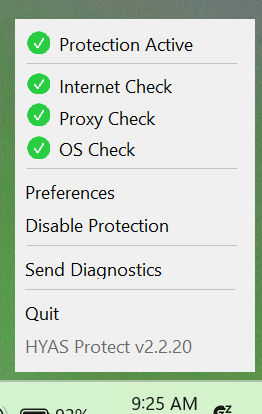
The Agent currently uses branding for HYAS Protect, including the app icon in the System Tray. This will be updated in a future release.
Before performing any troubleshooting steps, please be sure you have the latest version of the Agent.
Updating the Agent
Checking the Version of the EnforceDNS Agent
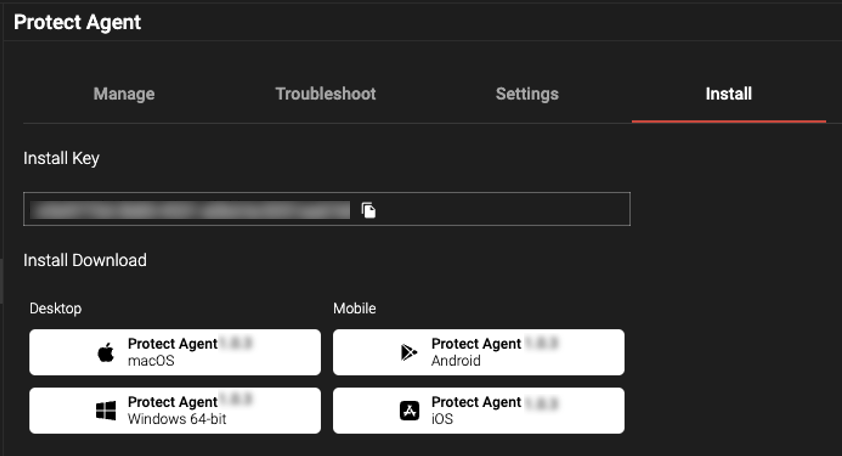
Navigate to the EnforceDNS Portal> Settings (gear icon)> Organization Settings> EnforceDNS Agent
From the “Install” screen, you’ll see the “Install Download” buttons. These buttons have the latest release number on them. Note the release number for the Windows Agent here.
Now determine which version is on the specified machine
Method 1:
Navigate to the “Manage” section of the EnforceDNS Agent Portal.
Find the device name, then look under the “Agent Version” column to see the associated version.
Method 2:
On the local machine, click on the HYAS icon in the system tray to see the version number, which can be found at the bottom of the Agent UI.
Determining the Agent version using the Agent UI
If you Agent version is outdated, update the Agent (see below).
How to Update the EnforceDNS Agent
In the EnforceDNS Portal, choose EnforceDNS Agent and go to “Manage”
Select the device you wish to update
Click “Actions” (the three dots)
Click “Update Agent”
Please allow up to 15 minutes for the update to complete. The machine must be currently running in order to perform an update. If not, the update will take place the next time the Agent is running.
Captive Portal Connectivity
Handling Captive Portal Connectivity Issues
When connecting to the Internet via a hotel, coffee shop, or related location, often the store or location utilizes a “captive portal” that the device must connect to prior to obtaining full Internet access. In some cases, the device may not properly connect to the captive portal, meaning that the device may not properly authenticate to obtain access to the Internet.
First, the user should perform a restart of their device. A device reboot should resolve the issue.
If a reboot does not resolve the issue, and the device still cannot connect to the captive portal, you need to stop the EnforceDNS service (please note the user will need admin privileges to perform some of these options).
To stop the Agent using the Agent UI, use the “Disable Protection” option.
To stop the Agent using Windows Services, enter “Services” into the Windows search bar and click on open. Look for the name “HYAS Protect”, right click and choose “Stop”.
The device should now be able to connect to the captive portal and thus the internet. If the captive portal does not appear, consider disconnecting from the network and reconnect to prompt the captive portal to appear, or reboot the machine.
When network access has been restored, restart the EnforceDNS service either through the Agent UI, the EnforceDNS Portal, or a PowerShell script.
Local Domains Not Resolving
Unable to Resolve Local Domains
Corporate networks, often referred to as a corporate or company Intranet, typically use local domains (DNS suffixes) for local resources. If a problem with the resolution of local domains occurs:
Ensure all local domains associated with the organization are configured under “Local Domains” in the EnforceDNS Portal.
This can be found under Settings (gear icon)> Organization Settings> EnforceDNS Agent> Settings
If a local domain is not configured, then endpoints will not be able to resolve resources associated with that domain.
Also in the EnforceDNS Portal, configure any internal resolver IP addresses under “Local Resolvers”. This should be completed prior to the Agent installation to prevent possible resolution issues.
Split-Horizon DNS Functionality
Configuring Split-Horizon DNS
In some cases, organizations use of the same domain both on the local intranet and on the internet. This dual usage creates ambiguity in resolving the domain's IP address, as it may resolve to private IP addresses when connected to the intranet and to public IP addresses when outside the office.
To solve for this, the Agent can use Split-Horizon DNS (also known as Split-Brain). This test is specifically designed for environments where internal and external users receive different DNS responses for the same domain. The system sends a DNS query to your designated local resolver and compares the response to an expected local IP address.
If the response matches: The system confirms that the device is on your local network and applies the corresponding local settings.
If there’s no match: The system assumes the device is on an external network and applies external settings.
Unable to Connect to Known Network After Installing the Agent
There are several reasons why a device may be unable to connect to the internet. Start by checking your local machine settings to ensure Wi-Fi is turned on. If you’re using an Ethernet cable, verify that it is securely connected to both your computer and the router. Confirm that all hardware is powered on and functioning properly.
Restart the machine, as many issues can be resolved by simply rebooting the device running the EnforceDNS Agent. If you’ve completed all standard diagnostic steps and still suspect the Agent is the cause, you should contact threatER Support.
If immediate internet access is required, you can disable the Agent via the Agent UI. On Windows machines running older versions of the Agent, note that uninstalling the agent may fail to revert “known networks” (networks the device previously connected to while the agent was active) to DHCP settings. This can result in loss of connectivity to those networks, and “forgetting” the network will not resolve the problem.
Workaround:
The end user will need to connect to a new network the Agent has never encountered. This will allow an IT administrator to remote in and reset DHCP for the affected network. To avoid this situation, disable the EnforceDNS service before uninstalling.
You can verify if the network reset was successful by running:
ipconfig /all | findstr DNS
If the DNS settings show ::1 or 127.0.0.1, the reset was not successful. In that case, re-enable the service and attempt the reset again. Be aware that uninstalling the Agent without a successful reset may leave the user without network connectivity.
Missing Devices
Missing Devices in Logs or in the EnforceDNS Portal
If you’ve installed the Agent using a golden image and some machines appear to be “missing” from the logs or the EnforceDNS Agent> Manage tab, the issue may be due to the image being incorrectly configured. An improperly set up golden image can duplicate the machine ID across all deployed devices, causing log discrepancies and making it appear as though machines are missing. In some cases, affected devices may briefly appear in the Manage tab before disappearing. To avoid this, configure the golden image to generate a unique machine ID on each device after deployment.
Additional Troubleshooting Scripts for PowerShell
Administrator privileges are needed in order to run the below scripts.