.svg)
Overview
The EnforceDNS Agent empowers organizations to leverage the robust capabilities of EnforceDNS on their roaming devices. Functioning as a DNS Proxy, the Agent offers a straightforward, lightweight, and highly effective solution to extend the full benefits of EnforceDNS to your mobile workforce.
This page will review the Agent installation procedure for a Windows machine. We’ll give you both UI and PowerShell options along with some troubleshooting steps if you get stuck along the way.
The Agent currently uses branding for HYAS Protect, including the app icon in the System Tray. This will be updated in a future release.
Architecture
-
The Agent consists of two parts, a service and a UI (user interface)
-
Service/Backend: The service, also known as the backend, is responsible for the core functionality and logic of the Agent.
-
The UI, also known as the front end, is the part of the application that users interact with.
-
-
For purposes of this document, when referring to the Agent, we mean the service and the UI together.
Starting the Agent UI
By default, the Agent’s UI will not launch upon install. However, the Agent service is running and protecting your machine in the background.
The Agent UI provides feedback, status updates and other information related to the Agent. If you wish to start the UI to view these, please perform the following steps:
-
To start the Agent UI:
-
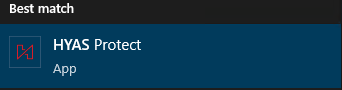
Navigate to the search bar and type “HYAS Protect”
-
-
Click on the HYAS Protect app
-
-

Checking Agent Status
When checking status, keep in mind that the Agent communicates with the EnforceDNS backend approximately every 5 minutes, so statuses may not appear immediately in the EnforceDNS Portal.
EnforceDNS Portal
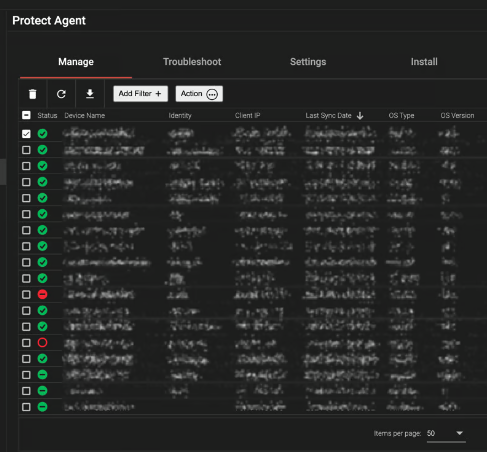
Administrators may check the status of all Agent’s from the ‘Manage’ tab in the ‘EnforceDNS Agent’ section of the EnforceDNS Portal.
-
Login to EnforceDNS, click on Settings> Organization Settings> EnforceDNS Agent> Manage.
-
From this view, you can check the ‘Status’ column to get information on the status of all the Agents.
EnforceDNS Agent UI
It is also possible to check the status of the Agent on the local machine itself.
By default, the Agent’s UI will not launch. However, the service will still be running and actively protecting your machine whether the UI is open or not.
-
Ensure the Agent UI is running:
-
If you do not see the HYAS icon in the System Tray, the Agent UI is not running. This does not mean that EnforceDNS is not protecting the machine. This only means the UI is not running.
-
-
To start the Agent UI follow the instructions listed above under ‘Starting The Agent UI’
-
-
With the UI running, click on the HYAS icon in the System Tray.
-
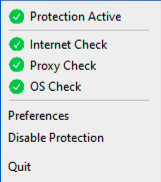
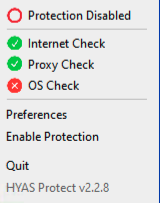
You’ll be presented with the following window:
-
-
Green means everything has passed checks and is working properly. Red signifies that there is an issue with the status and further troubleshooting may be required.
Agent Status Definitions
Protection Active
-
This shows the overall status of the Agent.
Internet Check
-
The EnforceDNS service performs the DNS query directly to the EnforceDNS cloud resolver. If this works, the service can reach the internet and can reach the EnforceDNS cloud backend.
Proxy Check
-
The EnforceDNS service performs the DNS query to 127.0.0.1:53. If this works, the service is correctly listening on 127.0.0.1:53, and can reach the internet and the EnforceDNS cloud backend.
OS Check
-
The EnforceDNS service asks the OS to perform the DNS query. If this works, the OS is configured to use 127.0.0.1:53 for DNS, the service is correctly listening on 127.0.0.1:53, and can reach the internet and the EnforceDNS cloud backend.
Agent Preferences
The Agent on the local machine includes configurable preferences to provide greater flexibility, visibility, and advanced troubleshooting. To access Preferences, start by navigating to the System Tray and click on the HYAS icon.
-
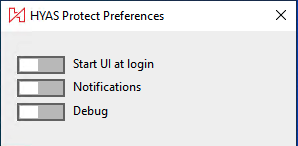
Once you click on Preferences, you’ll see the three options below:
-
Start UI at login
-
Enabling this will ensure that the UI is started on machine login.
-
The Agent will still run in the background, and be protecting your machine, regardless whether the UI is running or not.
-
Notifications
-
Turning this on allows the EnforceDNS Agent to send you notifications regarding connectivity or errors that may have occurred.
-
-
Debug Mode
-
Toggling this on can be useful if you’re having issues with your Agent. This feature enables additional logs to be collected for Client Admin or threatER analysis.
-
Disabling/Enabling the Agent
Disabling
There are a few different options to “turn off” the Agent.
Disabling the UI only
This turns the UI off but allows the Agent to still run in the background.
-
Click on the HYAS icon in the System Tray to access the settings. You’ll see the following popup:
-
-
Clicking “Quit” will turn off the Agent UI.
-
The Agent will still run in the background, and be protecting your machine, regardless whether the UI is running or not.
Re-enabling the UI only
-
If the HYAS icon is missing from the System Tray, it means the UI isn’t running.
-
To start the UI, see instructions above titled, Starting the Agent UI
-
Disabling Protection Locally
If you wish to disable the Agent completely, you must stop the service itself.
This will completely stop EnforceDNS from running and it will no longer be protecting your machine.
-
Click on the HYAS icon in the System Tray.
-
Select, ‘Disable Protection’
-
This will disable the Agent completely for a period of 15 minutes.
-
If you are unable to select ‘Disable Protection’, your Administrator must toggle the feature on via the EnforceDNS Portal. Instructions for Admins on completing that can be found here.
Re-enabling Protection Locally
The Agent will automatically restart after 15 minutes. However, if you wish to restart the Agent sooner perform the following:
-
Navigate to the HYAS icon in the System Tray, click on it and select ‘Enable Protection’
-
This will re-enable the Agent to begin protecting your device again.
Disabling Protection via the Agent Portal
EnforceDNS Admin privileges are required to manage agents in the Portal.
-
Navigate to the Manage tab in the EnforceDNS Portal.
-
Select the Agent(s) you wish to disable by selecting the check box next to the Agent(s) and selecting the Action button


-
Select Disable Agent
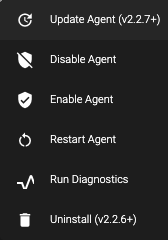
This will disable the Agent indefinitely. The Agent must be manually re-enabled before it can resume protecting the selected devices.
Confirming the Agent’s Running State
By default, the Agent runs in the background and automatically protects your machine upon installation. However, if you’d like to confirm that it’s running, you can do so by following one of the procedures below:
By default, the Agent’s UI will not launch. However, the service will still be running and actively protecting your machine whether the UI is running or not.
If the UI is NOT running
-
Start the Agent UI by following the instructions above under ‘Starting the Agent UI’.
If the UI is running
-
Navigate to the System Tray at the bottom of the screen and you should see:

-
The H with the solid dot signifies that the Agent, both service and UI, is up and running.
-
Updating the Agent
Like all software, regular updates are crucial for fixing bugs, adding new features, and improving client experience and overall security.
threatER strongly recommends using a phased rollout approach when deploying agent updates. This involves updating a few machines at a time, testing them, and then proceeding with additional updates. This standard practice for software updates helps ensure easier troubleshooting and minimizes the risk of widespread issues.
Update via the EnforceDNS Portal
To update agents from the EnforceDNS Portal:
-
Navigate to the portal, click on Settings> Organization Settings> EnforceDNS Agent> Manage
-
Select the machine(s) you wish to update
-
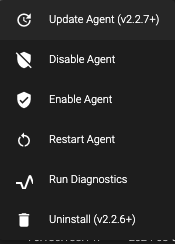
Click on Action

-
Select Update Agent
-
Allow up to 15 minutes for the updates to complete.
Uninstalling the Agent
Uninstall via the EnforceDNS Portal
The easiest way to uninstall the Agent is through the ‘Manage’ tab in the EnforceDNS Portal.
-
Navigate to EnforceDNS> Settings> Organization Settings> EnforceDNS Agent> Manage
-
From the ‘Manage’ tab, select the machine(s) you wish to uninstall the Agent from, click on ‘Action’ and select ‘Uninstall (vx.x.x)’
-
The Agent(s) will be uninstalled from the desired machines in about 15 minutes.
Uninstall via Windows
For individual machines, you can also uninstall using Windows.
-
From the Start menu, select Settings> Apps> Installed apps
-
Find “HYAS Protect” on the list and click the three dots
-
Choose “Uninstall” and follow the prompts to fully uninstall EnforceDNS