.svg)
EnforceDNS Agent Dashboard
-
To begin using the EnforceDNS Agent, navigate to the EnforceDNS UI, login, and click on the Settings (gear) icon. From there, select ‘Organization Settings' and then 'EnforceDNS Agent’ from the left side menu bar.
-
Once there, you will be presented with the EnforceDNS Agent Dashboard. This dashboard allows you to Manage, Troubleshoot, Configure Settings & Install the Agent.
Manage Tab
The Manage Agent tab is comprised of:
-
Trash icon
-
Delete devices that are no longer in the organization. If an agent is deleted but still synchronizing, it will show up again. You must uninstall an Agent for it to stop syncing.
-
-
Refresh
-
To refresh the view when new agents are added, or to determine an updated
Last Sync Date
-
-
Download
-
Download the list of Agents. CSV or JSON.
-
-
Add Filter +
-
To apply specific filters to all agents onboarded: Agent Version, Device Name, OS Type, OS Version, Status
-
-
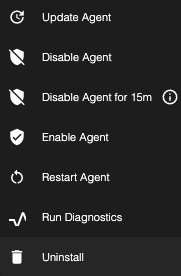
Action
-
Select one or more Agents to enable button.
-
Update Agent - Updates the selected Agent(s) to the newest version. Current Agent must be 2.2.13 or new to be able to be updated in this method.
-
Disable Agent - Disables the selected Agent(s) indefinitely. Machine must be running v2.2.5 or later.
-
Disable Agent for 15m - Disables the selected agents for 15 minutes. Agent will automatically become re-enabled once the 15 minute timeframe has concluded. Machine must be running v2.2.11 or later.
-
Enable Agent - Enables the selected Agent(s). Machine must be running v2.2.5 or later.
-
Restart Agent - Restarts the selected Agents(s). Machine must be running v2.2.5 or later.
-
Run Diagnostics - Retrieves troubleshooting logs from the selected Agents. Shown under the Troubleshoot Tab. Machine must be running v2.2.5 or later.
-
Uninstall - Uninstalls the Agent directly from the Central Agent Management console. Agent to be uninstalled must be 2.2.6 or later to be uninstalled using this method.
-
Please allow approximately 5 minutes for actions to execute. You may need to refresh the page to view them.
-
Search Data Table
-
To perform a case-insensitive substring search on any columns within the current data displayed (50-300 agents)
-
-
Using the
Add Filter +function takes more clicks, but is comprehensive to all agents.-
If you have more than 300 agents, then a combination of
Add Filters +followed by theSearch Data Tableis suggested.
-
-
Using the
Search Data Tablefunction is fast, but not comprehensive beyond 300 agents.-
If you have 300 or fewer agents, then
Search Data Tableis recommended.
-
Agent List Table
The columns available within the table are:
-
Checkbox - To select one or more devices to manage
-
Status
-

-

-

-

-

-

-
-
Device Name
-
Username - The user logged into the device. Mac and Windows only. Machine must be running agent v2.2.5 or later.
-
Client IP
-
Last Sync Date
-
OS Type
-
OS Version
-
Agent Version
-
Last Action - Last action taken on an Agent
-
Pending Actions - Action initiated but not yet executed
-
Actions - Can be used when performing an Action on a single Agent.
-
To create Actions on Multiple Agents at once, use the Action button from the menu bar.
-
Agents that haven’t checked in for 90 days will be automatically removed from the table. They’ll reappear once they check in again.
Troubleshoot Tab
Available for Windows and Mac Agents running v2.2.5 and later.
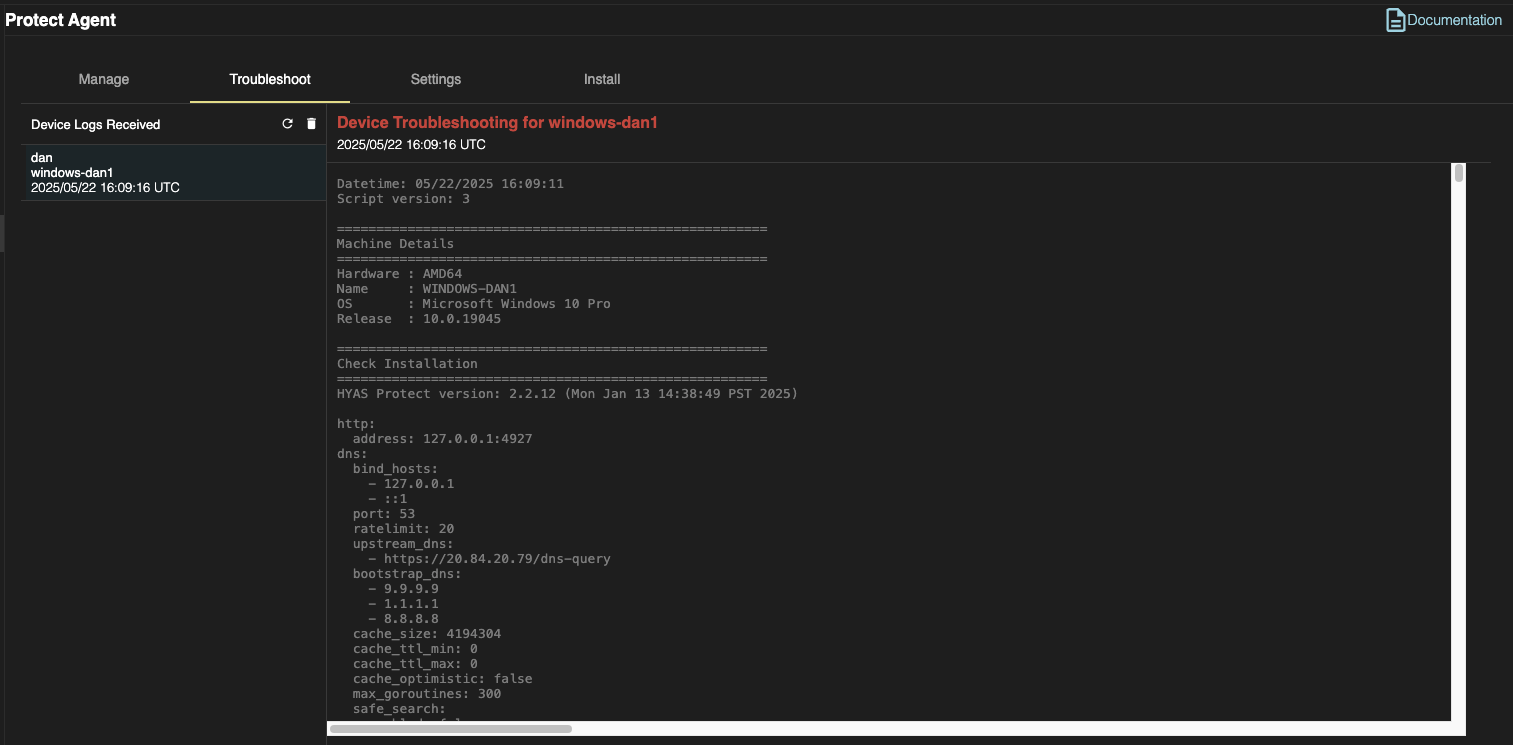
The Troubleshoot tab displays detailed logs retrieved from any Agents you’ve selected for diagnostics. To run diagnostics on one or more Agents, go to the Manage tab, select the desired Agent(s), and choose Action → Run Diagnostics.
You can also download the resulting troubleshooting logs as a .txt file by selecting Download Logs icon.
Please allow approximately 5 minutes for the troubleshooting logs to become available. You may need to refresh the page to view them.
Troubleshooting logs will include but are not limited to the following information:
-
Machine Details: Hardware, OS, release information
-
Check Installation: Installation details around the Agent
-
Active Network Interfaces
-
If the EnforceDNS Agent is active, DNS Servers should equal 127.0.0.1 (loopback)
-
-
DNS Lookup through OS
-
DNS lookup direct
-
Corresponds with the “Proxy Check” of the
-
-
Last 500 lines of the log file
-
Last 500 lines of the querylog file
-
Kernel extensions
-
Network Services
-
Firewall Rules
Sample Troubleshooting Log:
Settings Tab
The settings tab offers a variety of tools to help you manage your EnforceDNS Agent, including options to configure local domains and resolvers, as well as control whether employees are allowed to temporarily disable the Agent.
Split-Horizon DNS and Local Resolution Settings
Split-Horizon DNS and Local Resolution Settings give you the flexibility to manage DNS behavior across different network environments. These features allow the EnforceDNS Agent to determine whether a device is on an internal network and ensure that internal domains always resolve through the correct DNS infrastructure.
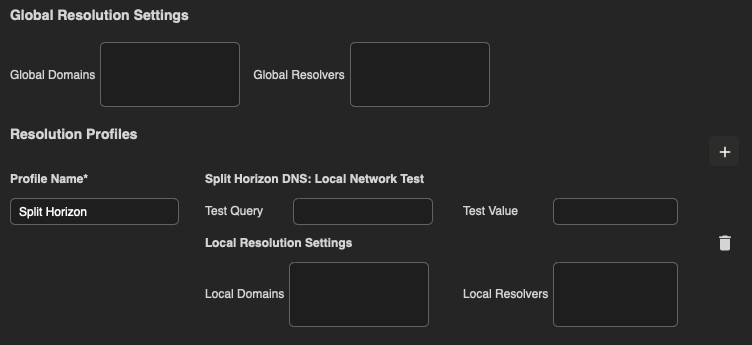
Global Resolution Settings
Global Resolution Settings allow you to define domains and resolvers that apply across all network conditions. If your organization uses internal DNS servers that should always be queried for specific domains, you can specify those domains and resolvers here. Global settings act as a baseline and are applied unless a Resolution Profile provides its own local configuration.
Resolution Profiles
Resolution Profiles let you tailor DNS behavior to individual network locations. Each profile includes a Profile Name, Split-Horizon DNS test values, and Local Resolution Settings. You can create up to ten profiles, allowing the Agent to match your internal architecture and handle roaming devices that move between sites.
A profile contains the following components:
Split-Horizon DNS: Local Network Test
Split-Horizon DNS allows the Agent to determine whether a device is inside a specific internal network. The Agent performs a lookup for the configured Test Query using the resolver IPs defined in the profile. If any resolver returns the expected Test Value, the Agent concludes the device is on that network. When this condition is met, all subsequent lookups for domains in the profile’s Local Resolution Settings are sent to the internal resolvers.
Local Resolution Settings
Local Resolution Settings define the internal domain or domains that should always resolve locally, along with the resolver IP addresses that should be used. When the Agent identifies that a device is on the matching internal network, these domains bypass external resolution and are instead resolved by the specified internal DNS servers.
Each Resolution Profile represents a distinct network location. Profiles work alongside Global Resolution Settings, giving you the ability to standardize resolution across your organization while still accounting for unique site-level configurations.
Please see our EnforceDNS Agent Documentation for additional details on deployment steps.
Allowing Temporary Agent Disable
Administrators can decide whether to allow end users to temporarily disable the EnforceDNS Agent for 5 minutes. By default, this feature is turned off. If enabled, users can disable the Agent on their local device for up to 5 minutes. This functionality is available on Agent v2.2.7 or later.

Safe Search
EnforceDNS enables the enforcement of Safe Search functionality for Google, YouTube, Bing, and DuckDuckGo. Safe Search filters out explicit content from search results, ensuring that inappropriate material is not displayed, making it especially valuable for protecting younger users. This feature is available only when using Agent v2.2.8 or later.
After enabling Safe Search, you must restart the local machines for the changes to take effect.

Disable Agent on Local Network
EnforceDNS administrators can configure agents to automatically disable themselves when connected to a trusted local network. When disabled, the agent ceases protection, allowing the machine to utilize the local or internal DNS infrastructure for DNS resolution. This full disablement ensures seamless integration with internal network resources while prioritizing flexibility.
For this capability to work, one must enable Disable Agent on Local Network and properly configure Split-Horizon DNS: Local Network Test so that the agent knows when it is connected to a local network.

Ignore VPN Network Adapters (Windows only)
When enabled, the agent will not proxy DNS requests sent over VPN connections. These requests will bypass the agent and be resolved according to the VPN's DNS settings. DNS traffic from regular network interfaces (such as WiFi or Ethernet) will continue to be proxied by the agent and resolved through
EnforceDNS’s cloud resolvers.Use this setting if you want to exclude VPN-routed DNS traffic from agent-based resolution.

Install Tab
If deploying the EnforceDNS Agent AND your organization uses local domains, please be sure to configure Local Domains (instructions above) PRIOR to deploying the EnforceDNS Agent.
-
All of our agents can be downloaded from this portion of the settings page. Copy your
Install Keyand then select the version of the Agent you wish to deploy. -
Then, follow the prompts to complete the installation.