.svg)
Overview
The SentinelOne + EnforceDNS integration offers a powerful, deployment path that enables DNS-layer threat protection using your existing SentinelOne footprint and Agent. By leveraging SentinelOne’s Cloud Funnel, EnforceDNS gains visibility into DNS activity across all managed endpoints—both on-network and remote—without needing to install a separate agent.
This integration not only allows EnforceDNS to detect and report on suspicious DNS activity, but optionally block malicious domains by dynamically updating SentinelOne’s Network Control firewall rules. It’s a fast and seamless way to roll out Protective DNS across your organization using infrastructure already in place.
If you're looking for rapid deployment with minimal friction, this option is a great fit—especially for environments that already rely on SentinelOne for endpoint security.
Prerequisites
-
SentinelOne is deployed on all target endpoints (Windows/macOS)
-
Cloud Funnel is licensed and enabled in your SentinelOne environment
-
You have access to the SentinelOne console and EnforceDNS portal
-
SentinelOne Role/Access Requirements
-
Optional, if blocking, API Token created from a service user with:
-
Account level scope access: Account
-
-
Please make sure your account level scope access is set as ‘Account’ and not ‘Site’. If set incorrectly, you’ll receive an API key issue error.
-
Minimum Built-in RBAC Role: Standard built-in RBAC role not recommended
-
Custom Role Requirements: Firewall -> Manage Rules and Tags=Allowed
-
Key Features, Benefits & Considerations
|
Features, Benefits |
Considerations |
|---|---|
|
Does not require installation of the EnforceDNS Agent |
Requires SentinelOne Cloud Funnel license and configuration |
|
Leverages existing SentinelOne deployment for fast rollout |
Blocks occur at the IP level – may cause over-blocking in CDN or shared-host environments |
|
Works across both on-network and off-network device |
No user or device-level attribution in EnforceDNS |
|
|
No per-user or group-based policy enforcement |
|
|
No Local DNS, Split-Horizon or Safe Search capabilities |
|
|
|
SentinelOne Deployment and Configuration Overview
By integrating EnforceDNS and SentinelOne, it’s easy to deploy EnforceDNS rapidly and easily throughout an organization. It enables all the EnforceDNS protection and blocking access to malicious domains. There are 2 parts to the integration:
-
Reading all DNS query logs to gain visibility into DNS traffic (required for integration)
-
Blocking access to malicious domains (optional)
When EnforceDNS identifies an FQDN for blocking, it adds it to SentinelOne's Network Control Sentinel as a firewall rule. Although the rule lists the FQDN, SentinelOne blocks based on the IP address the FQDN resolves to. Consequently, other FQDNs and domains may also get blocked if they share the same IP as the one listed in the firewall rule.
Deployment
S3 Bucket Creation
-
Create an S3 Bucket on AWS for storing logs using SentinelOne’s recommended settings
-
Instructions Here
-
Please be sure to give HYAS both ‘list’ & ‘get’ access for the integration to work.
Enabling Cloud Funnel Streaming
-
On SentinelOne enable Cloud Funnel streaming
-
Instructions Here
-
Configure Integration in EnforceDNS
-
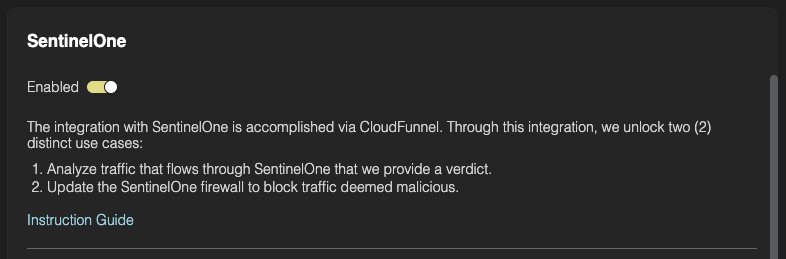
In EnforceDNS go to Configuration -> SentinelOne
-
Set the integration to “Enabled”
-
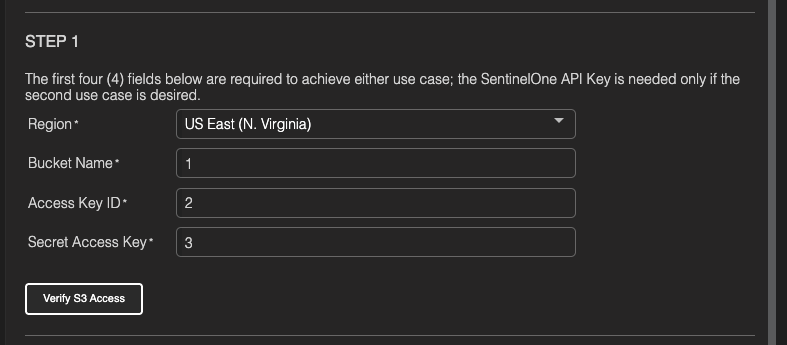
Configure the details of the AWS S3 bucket as configured in step 1
-
Click “Verify Access” to ensure everything is working correctly.
Enable Blocking - Optional
Only required if blocking of malicious domains is desired
-
Obtain your SentinelOne Account ID
-
In SentinelOne, navigate to Sentinels>Account Info. Your account ID will be in the on the left side of the page under your account name.
-
-
Obtain SentinelOne API Token
-
In SentinelOne create a new role with only the the following permissions
-
Firewall -> Manage Rules and Tags = Allowed
-
Instructions on creating a new role Here
-
-
Create a Service User and assign the aforementioned role.
-
Choose the Access Level Global or Account
-
Make note of the API token generated as it is needed to complete the configuration and cannot be retrieved later (only reset)
-
Instructions on creating a Service user Here
-
-
-
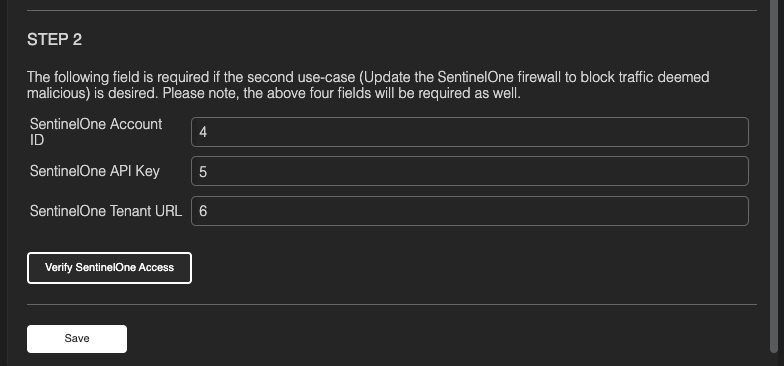
Enter the SentinelOne Account ID, API Key and Tenant URL as configured in previous steps.
-
Click 'Verify SentinelOne Access’
-
Click 'Save'
-
Blocking is now configured.
SentinelOne Deployment Checklist & Verification
- SentinelOne integration is enabled in the EnforceDNS portal
- S3 access verified
- DNS queries from SentinelOne-managed devices appear in Log View
Configuring Policies
Now that you’ve successfully deployed EnforceDNS, your environment is already safeguarded against malicious domains—including phishing sites, malware delivery networks, and command-and-control (C2) infrastructure (among others). These threats are blocked by default using HYAS’s infrastructure intelligence and real-time decision engine.
If you'd like to customize your protection further, you can configure additional policies—such as blocking unwanted content categories, managing allow/block lists, or tailoring behavior by source network or user group. [Learn how to configure policies →]